How to Set Up Docker MCP Toolkit and Connect It to Claude (Step by Step)
The full walkthrough behind the reel: set up Docker MCP Toolkit from scratch — download Docker Desktop, enable the toolkit, add connectors, and wire 300+ tools into Claude in about 10 minutes.
MCP Toolkit by Docker is one of the most underrated apps in AI right now. It puts 312 connectors in one place — Notion, Slack, GitHub, YouTube, PostgreSQL, and more — and lets your AI agent use them in a single click. No fiddling with config files, no npm installs, no leaking API keys into a chat window.
This is the full, no-skips version of the setup — from typing a URL in your browser to watching Claude summarize a YouTube video by calling a real tool. No prior Docker experience required.
Came here from one of my reels? You’re in the right place — this is the complete walkthrough. I post AI automation breakdowns like this every week. Follow along: X / Twitter · Instagram · LinkedIn.
What you’ll end up with
- Docker Desktop installed and running on your machine
- The MCP Toolkit enabled with the connectors you care about
- Claude Desktop wired to those connectors through a single, sandboxed gateway
- A working test where Claude actually uses a tool
Total time: about 10 minutes.
Before you start
You’ll need two free apps:
- Docker Desktop — version 4.62 or later (the MCP Toolkit UI changed in 4.62, so older versions look different).
- Claude Desktop — the desktop app, not the browser version. MCP connections run locally, so the web app won’t work here.
That’s it. Let’s go.
Step 1 — Open your browser and download Docker Desktop
- Open your browser and go to docker.com.
- Click the big Download Docker Desktop button.
- Pick the build that matches your machine:
- macOS — choose Apple Silicon (M1/M2/M3/M4) or Intel chip. If you’re unsure, click the Apple menu → About This Mac and check the “Chip” line.
- Windows — choose the Windows (AMD64) installer. Most people want this one.
- Linux — choose your distro’s package (DEB/RPM) or follow the Linux instructions.
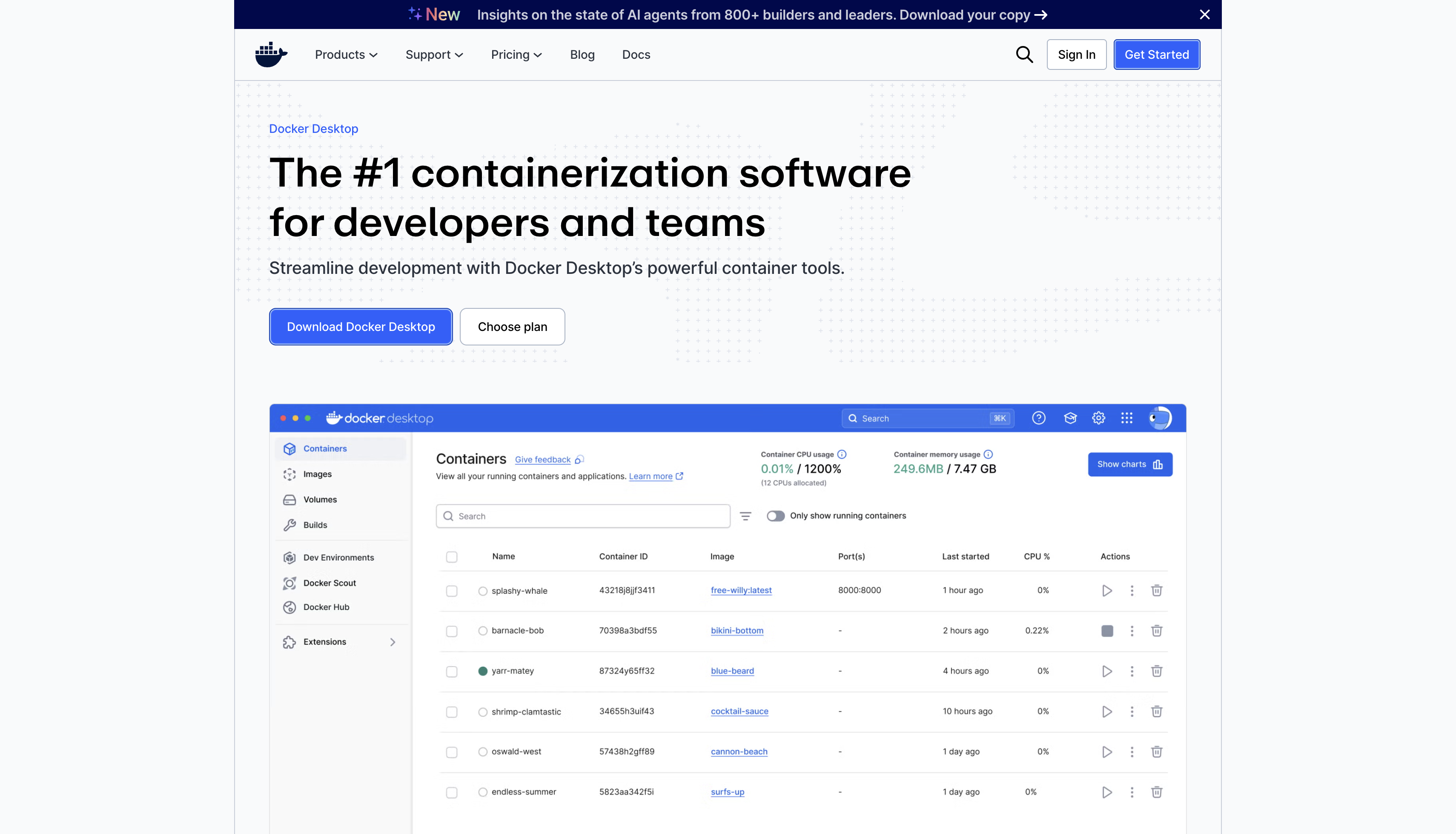
The installer is around 600 MB, so give it a moment to download.
Step 2 — Install Docker Desktop and start it
On macOS:
- Open the downloaded
Docker.dmgfile. - Drag the Docker whale icon into your Applications folder.
- Open Docker from Applications. Approve the privileged-helper prompt when macOS asks.
On Windows:
- Run the downloaded
Docker Desktop Installer.exe. - Keep the default options (including WSL 2, which Docker uses under the hood).
- When prompted, restart your computer to finish enabling WSL 2.
When Docker starts for the first time it will ask you to accept the subscription terms (Docker Desktop is free for personal use, education, and small businesses). You’ll know it’s ready when the dashboard loads and the bottom-left status reads “Engine running.”
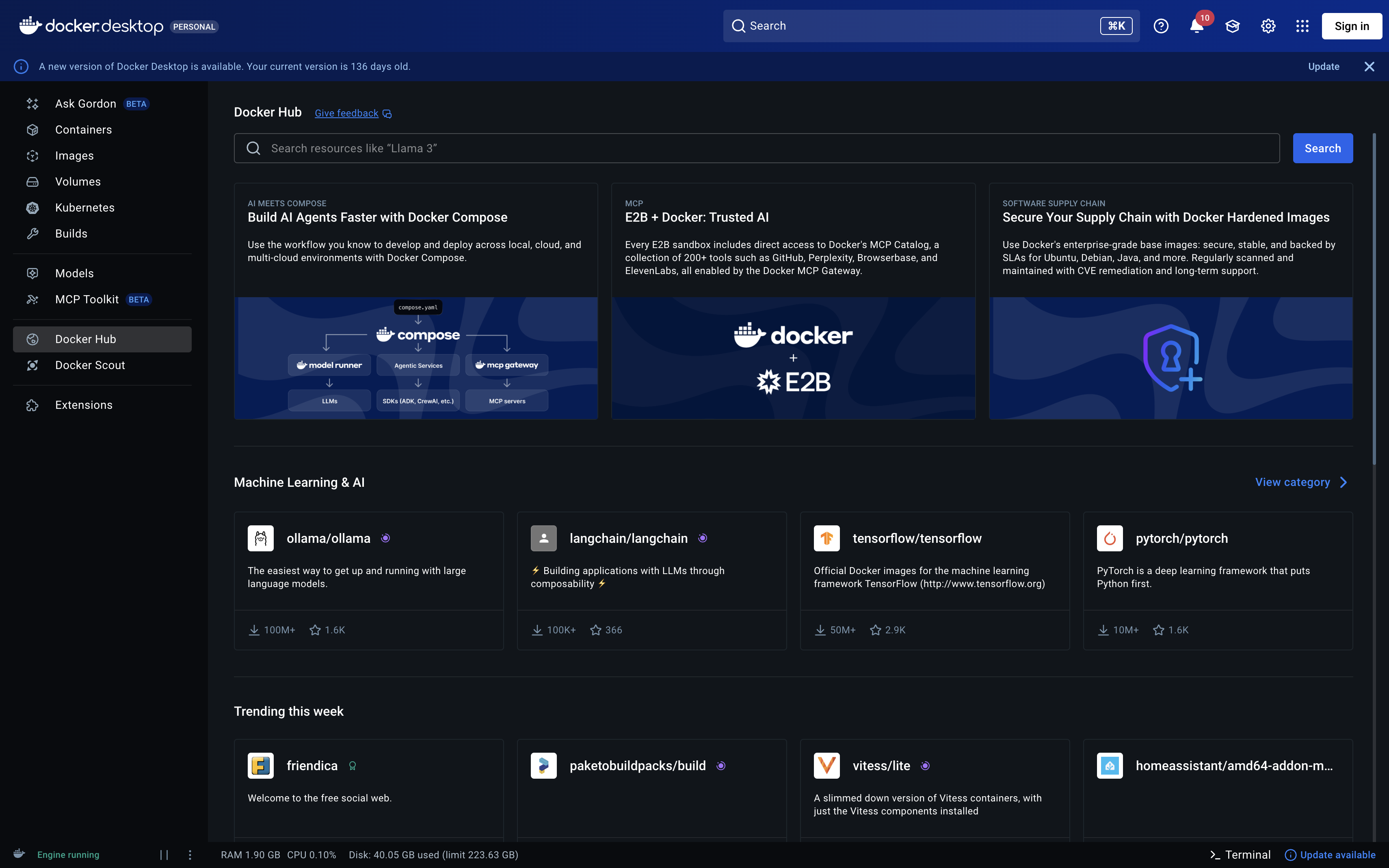
Step 3 — Make sure you’re on version 4.62 or later
The MCP Toolkit only looks the way this guide describes on Docker Desktop 4.62+. In the screenshot above you can see Docker nudging me that my version is out of date — if you see that Update banner at the top (or an Update available link in the bottom-right), click it and let Docker restart. If you just downloaded Docker today, you’re already current and can skip ahead.
Step 4 — Enable the MCP Toolkit
The MCP Toolkit ships inside Docker Desktop but is off by default.
- In Docker Desktop, open Settings (the gear icon, top-right).
- Select the Beta features tab.
- Check Enable Docker MCP Toolkit.
- Click Apply (or Apply & restart if prompted).
A new MCP Toolkit item now appears in the left sidebar. Open it — since you haven’t added anything yet, you’ll see an empty My servers (0) state with a button to browse the catalog.
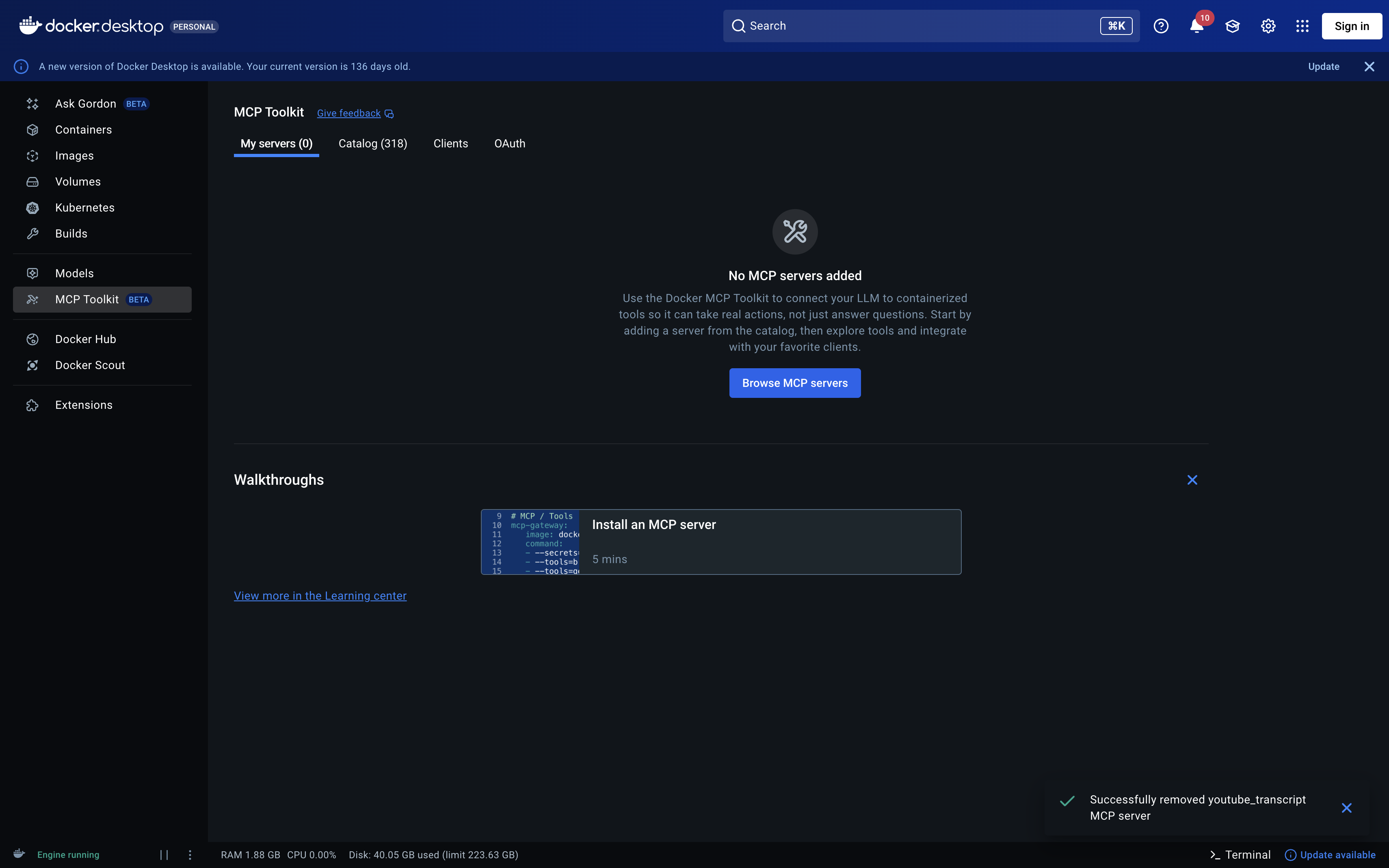
Step 5 — Browse the catalog
Open the Catalog tab inside the MCP Toolkit. This is the whole selling point: 300+ ready-to-run connectors, each packaged as a secure container. (When I captured this it showed 318 servers — the number keeps climbing.)
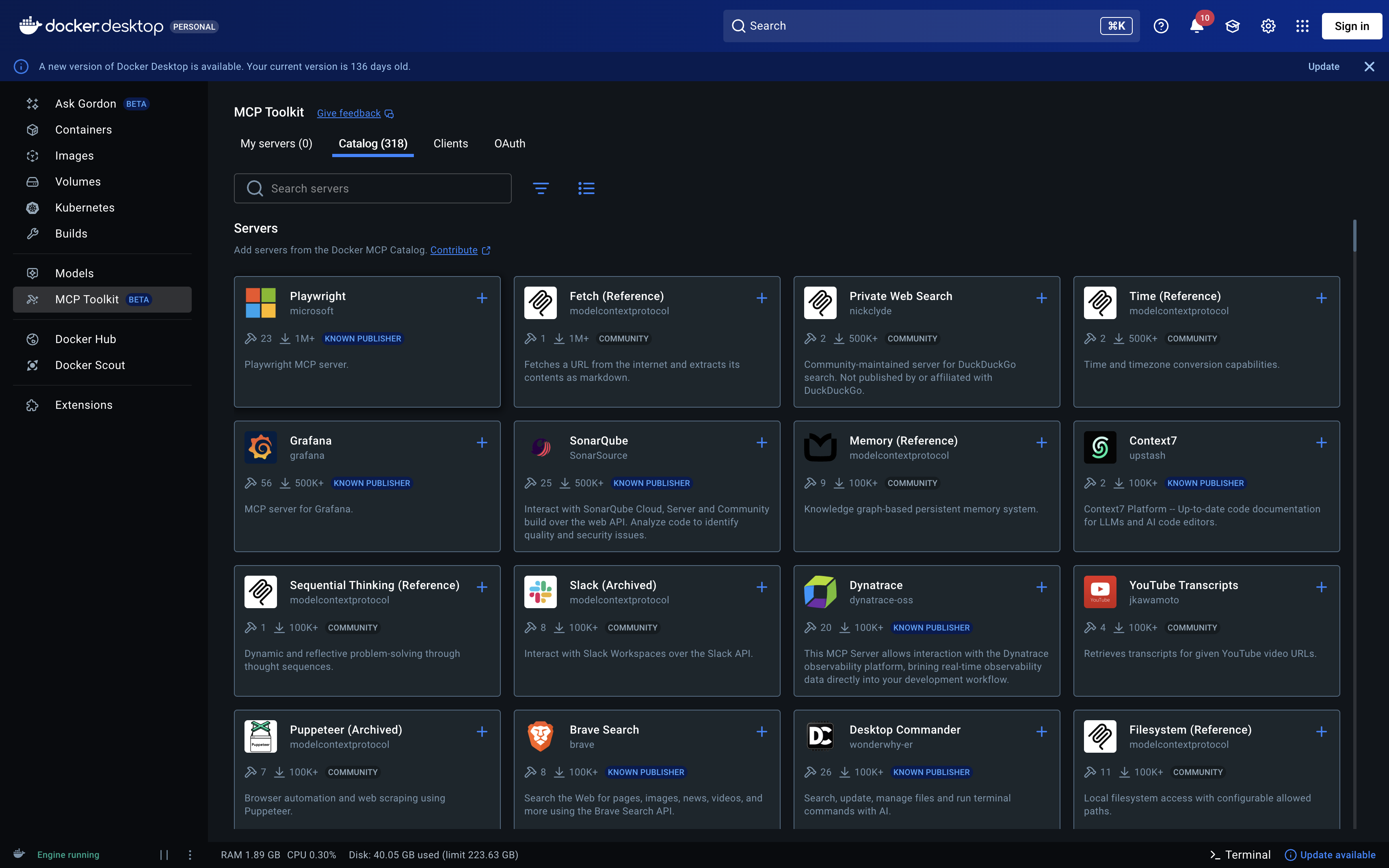
A few I reach for constantly:
- YouTube Transcripts — pull a full transcript from any video URL
- Notion — let Claude read and write your workspace
- GitHub Official — manage repos, issues, and pull requests
- PostgreSQL — query a database in plain English
- Context7 — fetch up-to-date library documentation
- Sequential Thinking — structured, step-by-step reasoning
Step 6 — Add a connector
Most connectors take one click. We’ll add YouTube Transcripts to use in the test later.
- Search for
YouTubein the Catalog. - Click the + on the YouTube Transcripts card.
- Docker shows a confirmation dialog. Community servers are published by third parties, so it reminds you to continue only if you trust the source. Click Add.
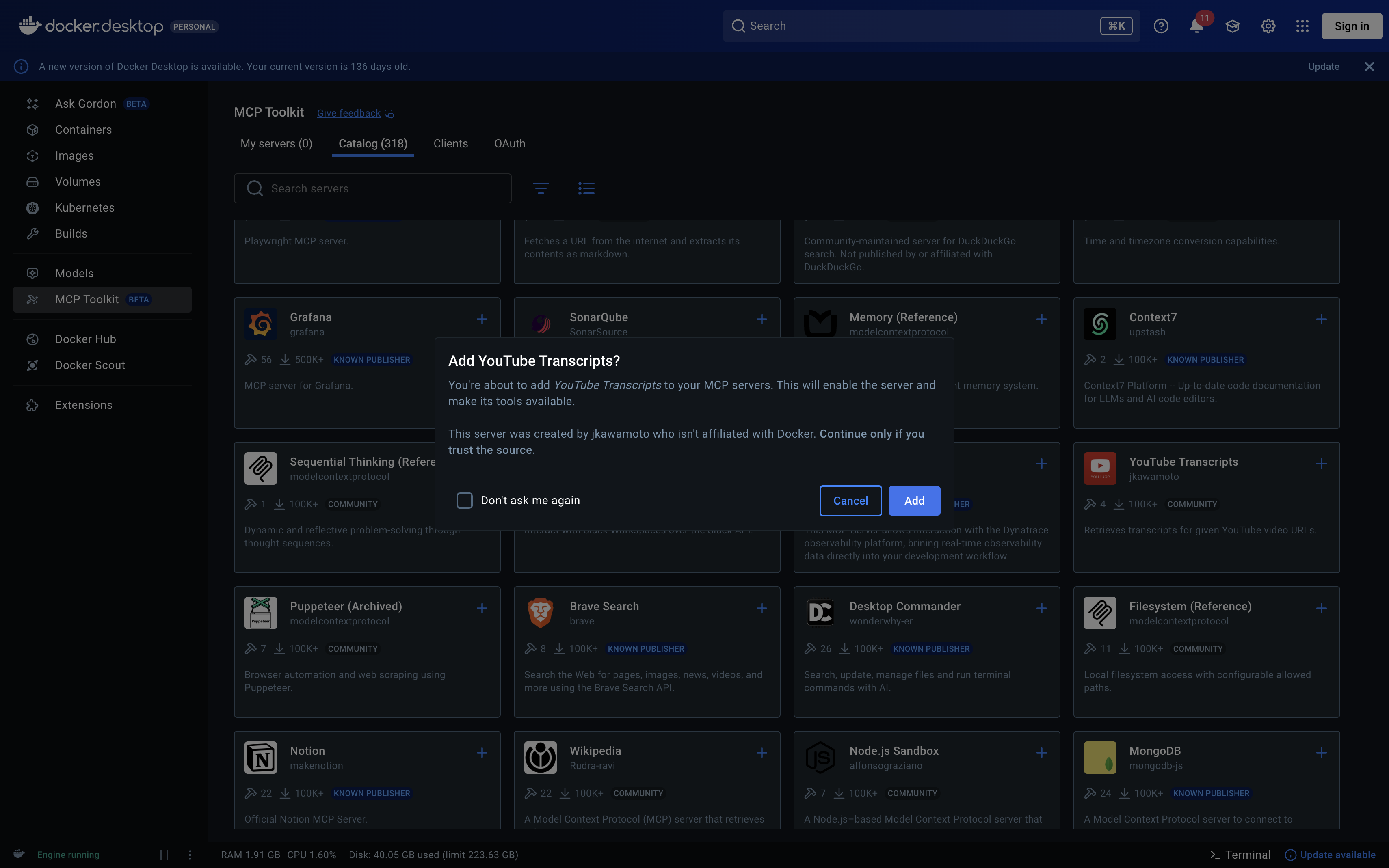
The server now shows up under My servers. Connectors that need credentials (like GitHub or Notion) work the same way, except you’ll also open their OAuth tab and click Authorize, or paste an API key in the Configuration tab. Everything runs inside an isolated container, so your keys never touch the AI client directly.
Following along on a second screen? I share these AI automation setups as short clips first, then write up the full version here. Catch the clips on Instagram and X / Twitter.
Step 7 — Install and sign in to Claude Desktop
If you don’t already have it:
- In your browser, go to claude.ai/download.
- Download and install the desktop app for your OS.
- Launch it and sign in with your Anthropic account.
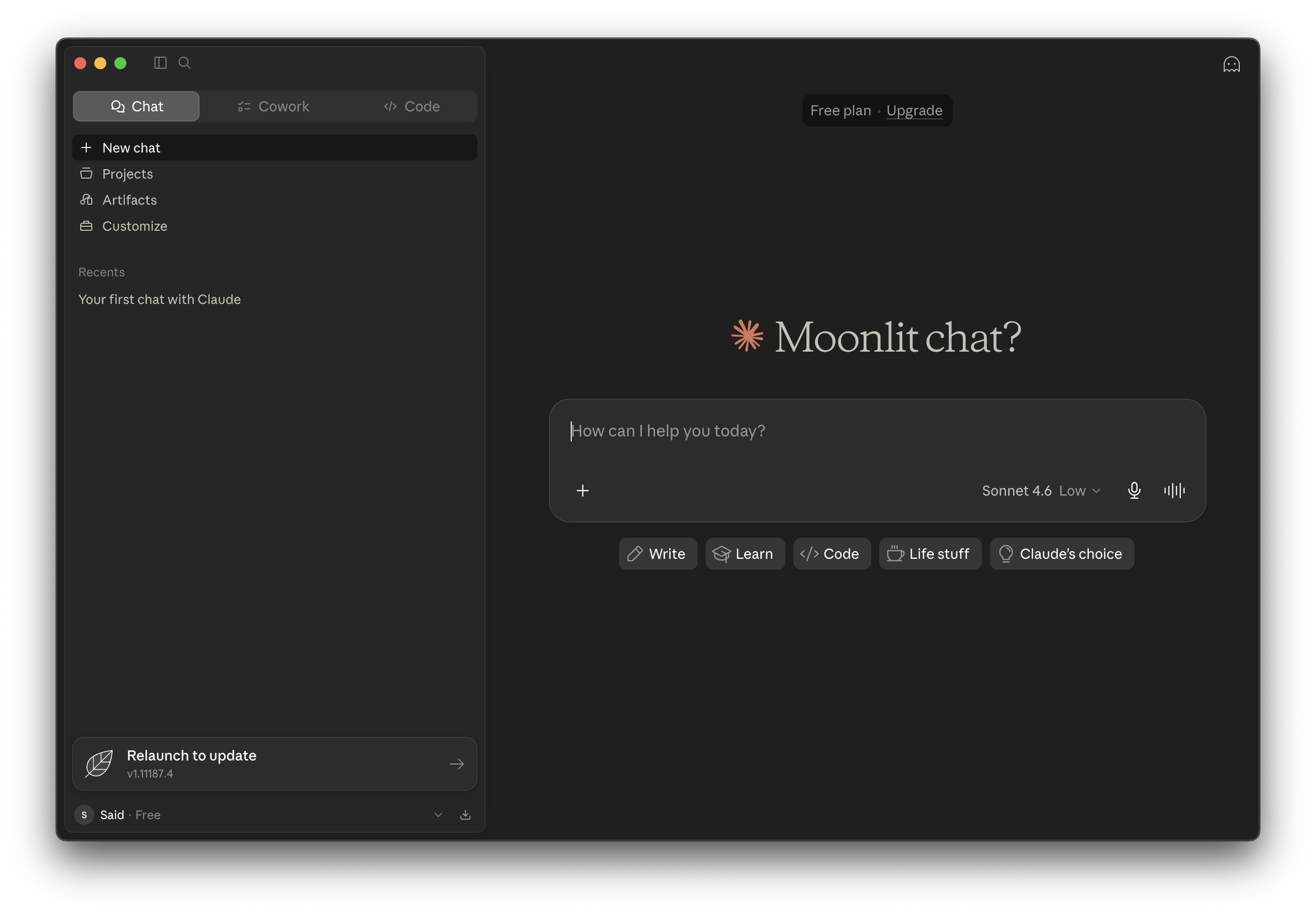
Make sure Claude Desktop is installed before the next step so Docker can detect it automatically.
Step 8 — Connect Claude Desktop to the MCP Toolkit
This is the magic moment — and it’s one click.
- Back in Docker Desktop, go to MCP Toolkit and open the Clients tab.
- Find Claude Desktop in the list of preconfigured clients.
- Click Connect.
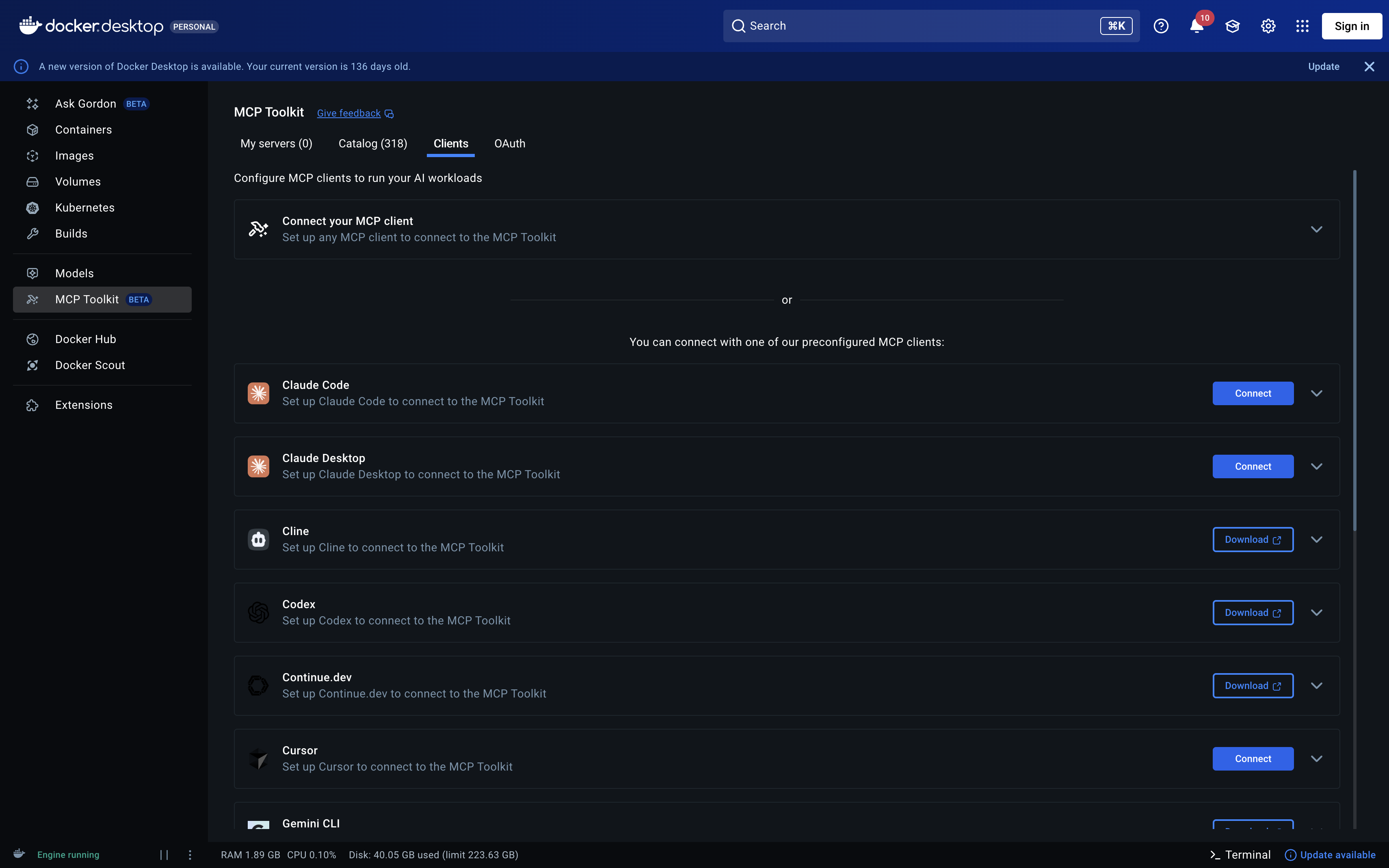
Docker writes the connection into Claude’s config file for you automatically — no manual editing. You’ll get a confirmation that the client is connected and needs a restart.
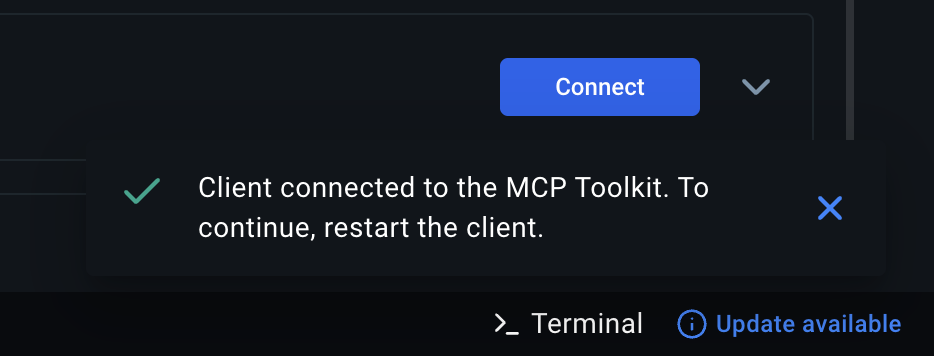
Behind the scenes it adds a single gateway server called MCP_DOCKER to claude_desktop_config.json:
{
  "mcpServers": {
    "MCP_DOCKER": {
      "command": "docker",
      "args": ["mcp", "gateway", "run"]
    }
  }
}
That one gateway exposes all the connectors in your profile to Claude — so you never edit this file again as you add or remove tools.
Step 9 — Restart Claude and verify the connection
- Fully quit Claude Desktop (don’t just close the window) and reopen it.
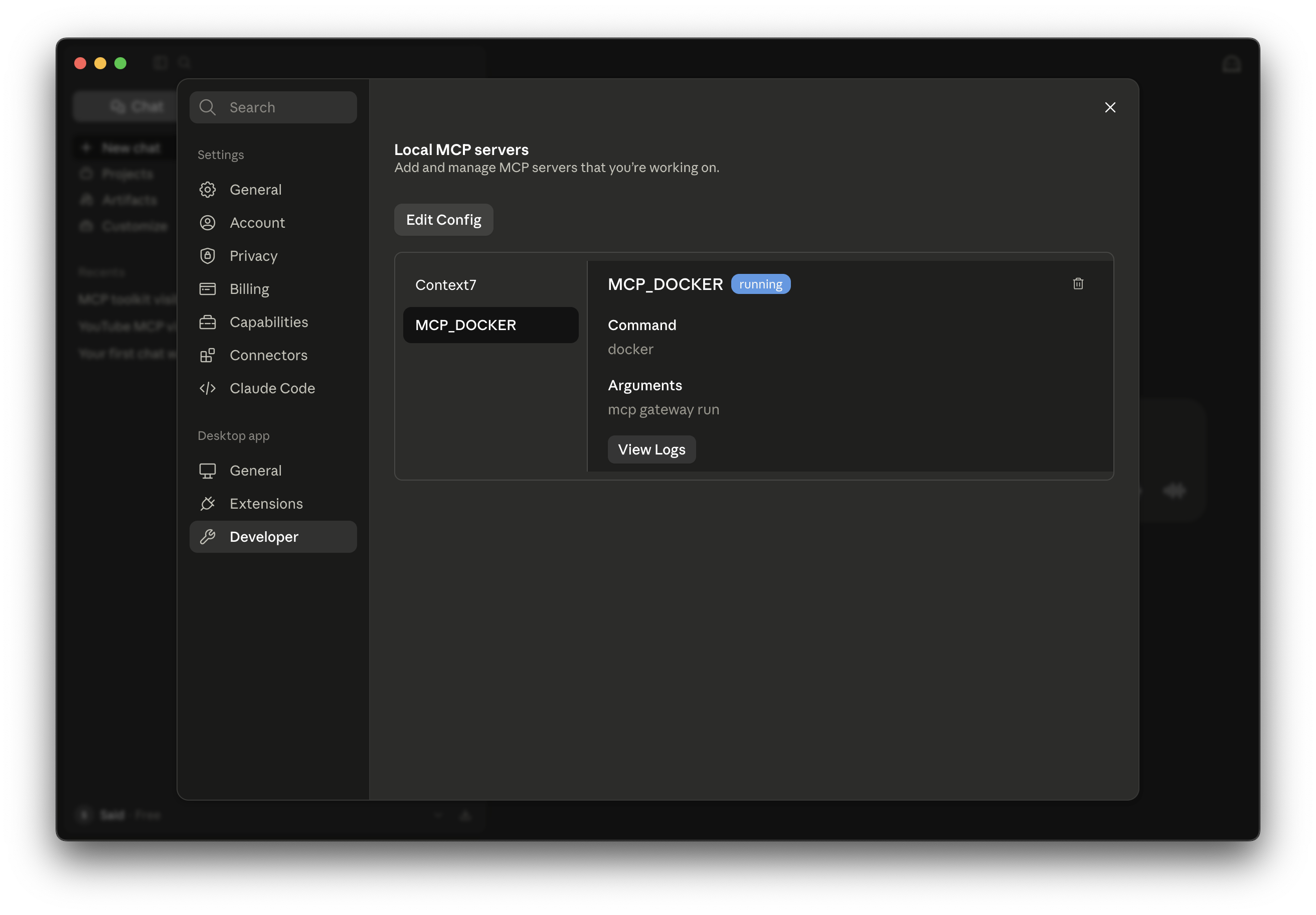
- Go to Settings → Developer.
- You should see MCP_DOCKER listed with a green running badge. Its command is
dockerand its arguments aremcp gateway run— exactly what Docker wrote for you.
Step 10 — Test it with a real prompt
Time to prove it works. We’ll have Claude summarize a YouTube video — something it can’t do without a tool, since it can’t watch the video itself.
Grab any video URL, for example this one:
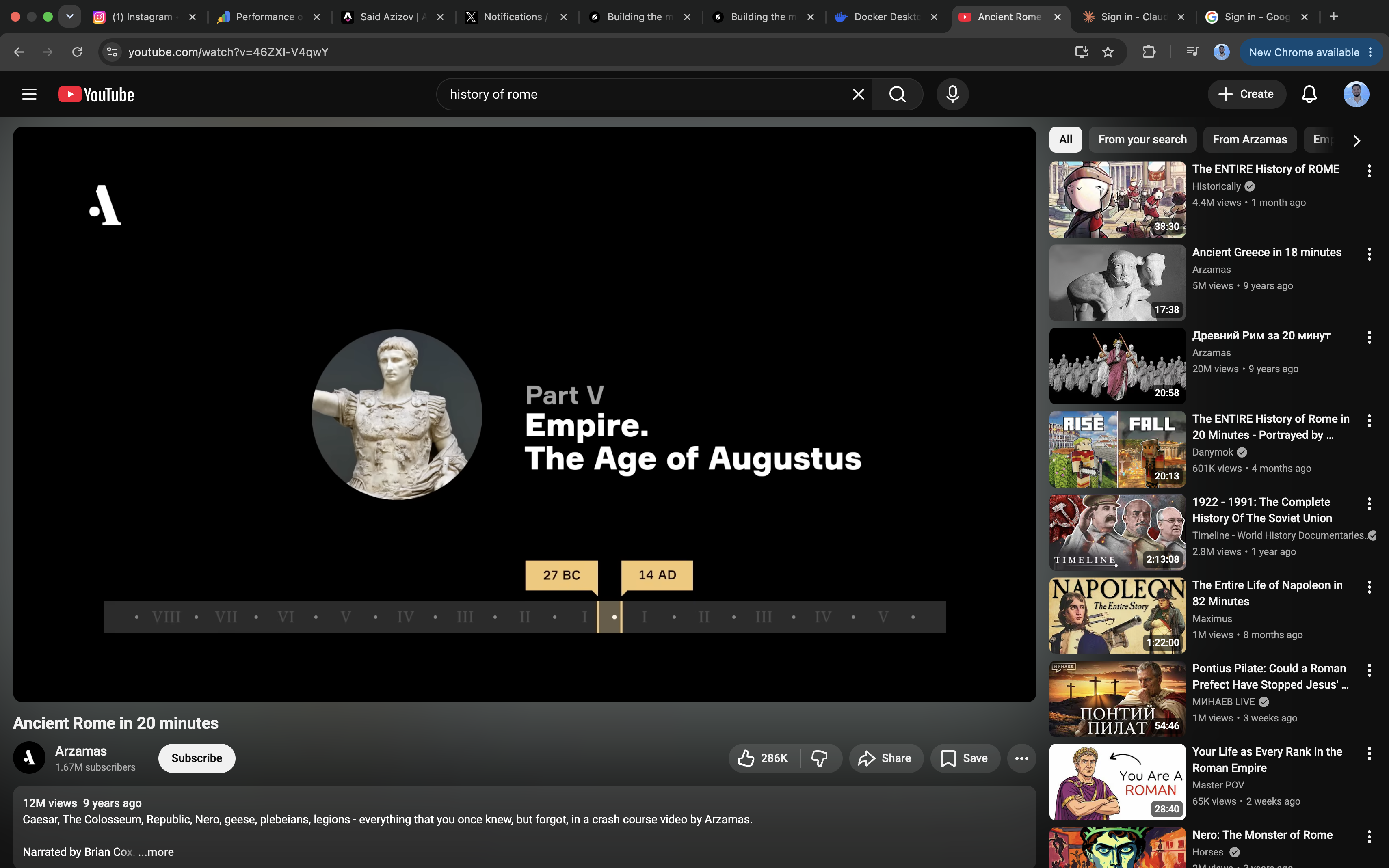
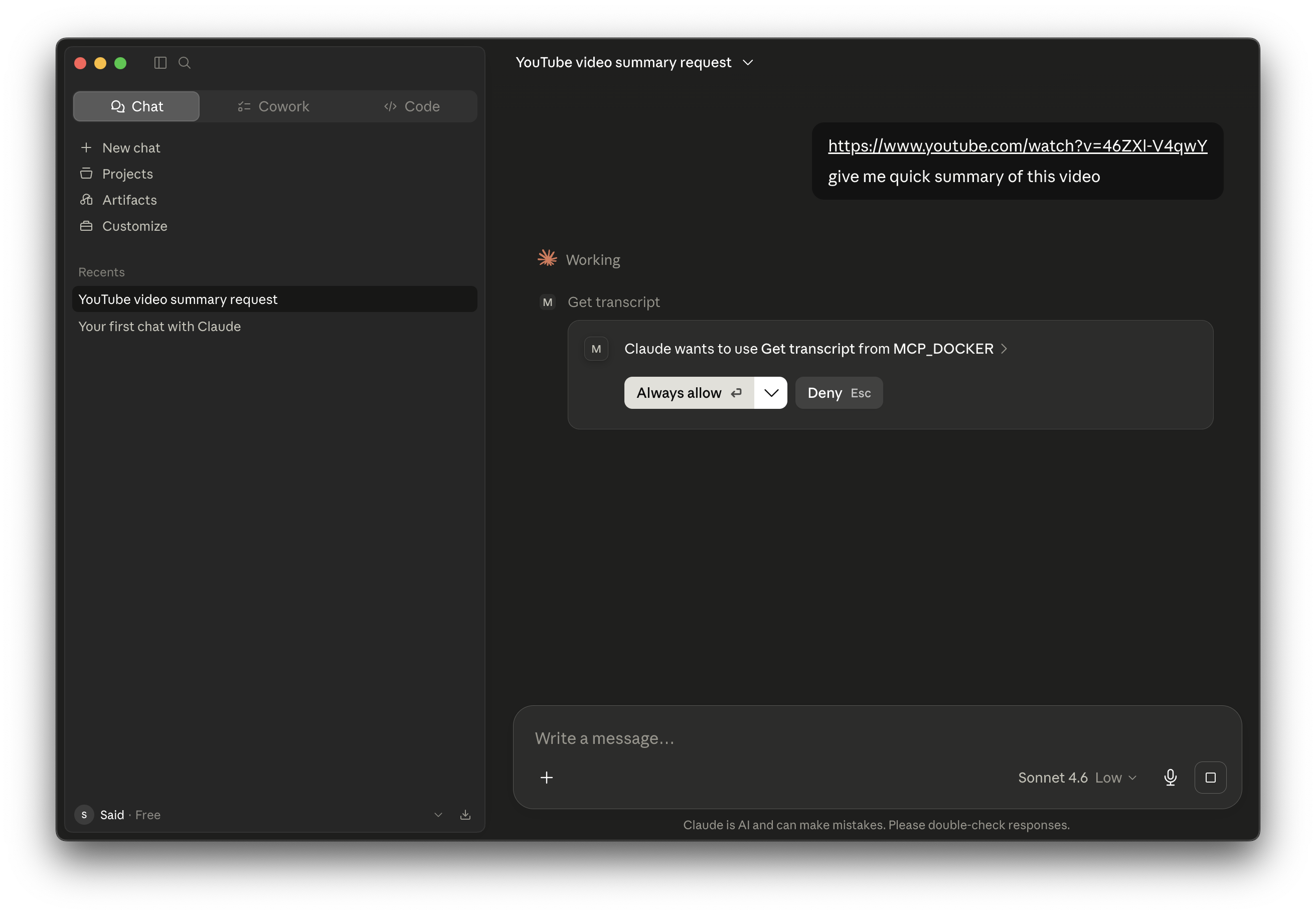
Paste the link into Claude with a simple prompt:
https://www.youtube.com/watch?v=46ZXl-V4qwY
give me quick summary of this video
Claude recognizes it needs a tool and asks permission to call Get transcript from MCP_DOCKER. Click Always allow (or Allow once).
It runs the connector inside a Docker container, pulls the transcript, and writes a real summary — origins of the Republic, Rome’s expansion, the civil wars, and the rise of Augustus:
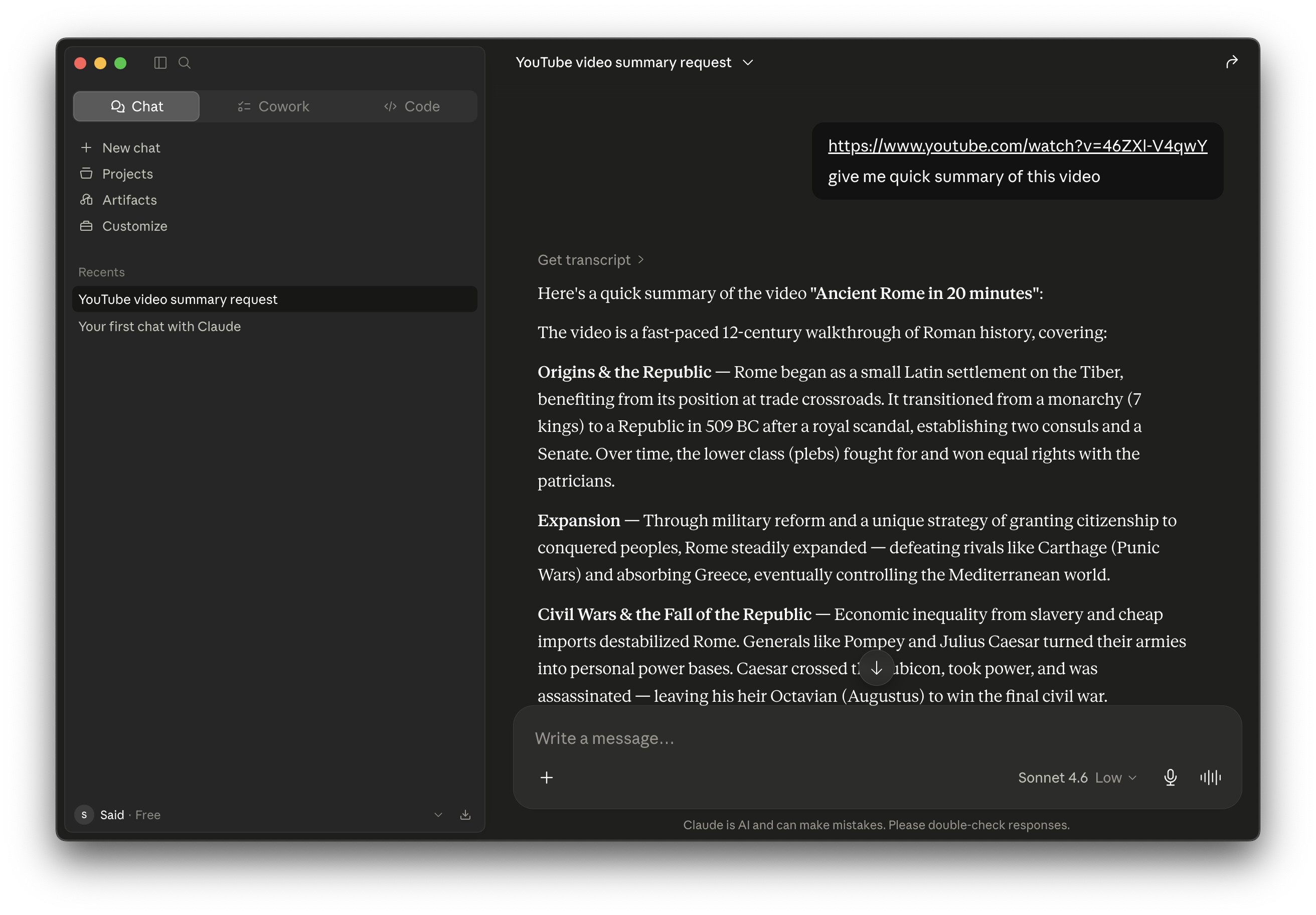
That’s the whole loop: a prompt, a sandboxed tool call, and real results. Swap in the GitHub, Notion, or PostgreSQL connector and the experience is identical.
Troubleshooting
- MCP_DOCKER doesn’t show up in Claude. Fully quit and reopen Claude Desktop — a window close isn’t enough. In the Clients tab, click Disconnect then Connect again to rewrite the config.
- A connector shows an error. Open its Configuration or OAuth tab and confirm the credentials are saved, then start the server.
- Tools don’t refresh after adding a new connector. Toggle Disconnect → Connect on the Clients tab so Claude re-reads the gateway.
- “Engine not running.” Make sure Docker Desktop is open and shows Engine running before launching Claude.
- Old-looking UI. You’re on a Docker Desktop version below 4.62 — update via the banner or Settings → Software updates.
Why this matters for AI builders
MCP (the Model Context Protocol) is becoming the standard way AI models connect to external tools and data. Instead of copy-pasting context into a chat, the model gets direct, secure, sandboxed access to your real systems. The Docker MCP Toolkit is the fastest way to get there: containerized, credential-safe, and compatible with Claude, Cursor, and other MCP clients.
It’s the same protocol I use at HermesOps to connect AI agents to client CRMs, databases, and communication tools.
Follow for more AI automation breakdowns
If this saved you time, this is exactly the kind of thing I share every week — practical AI agent and automation setups you can actually ship, broken down step by step.
Follow me here:
- X / Twitter → @said_azizow — quick tips and threads
- Instagram → @said.azizow — the reels and short walkthroughs
- LinkedIn → Said Azizov — deeper AI automation breakdowns
Want to keep reading? If you’d rather run the model itself locally instead of through an API, check out Qwen3.6-27B — Why Local LLMs Just Got Real for Business, or the overview piece Docker MCP Toolkit — 312 AI Integrations in One Click.